Translate DWG textin AutoCAD
Bring DBText and MText into one AutoCAD workspace. Select CSV terminology, review each draft, preview it in the drawing, then confirm write-back to a separate translation layer.
- Windows x64
- AutoCAD 2019–2026
- Current and legacy downloads
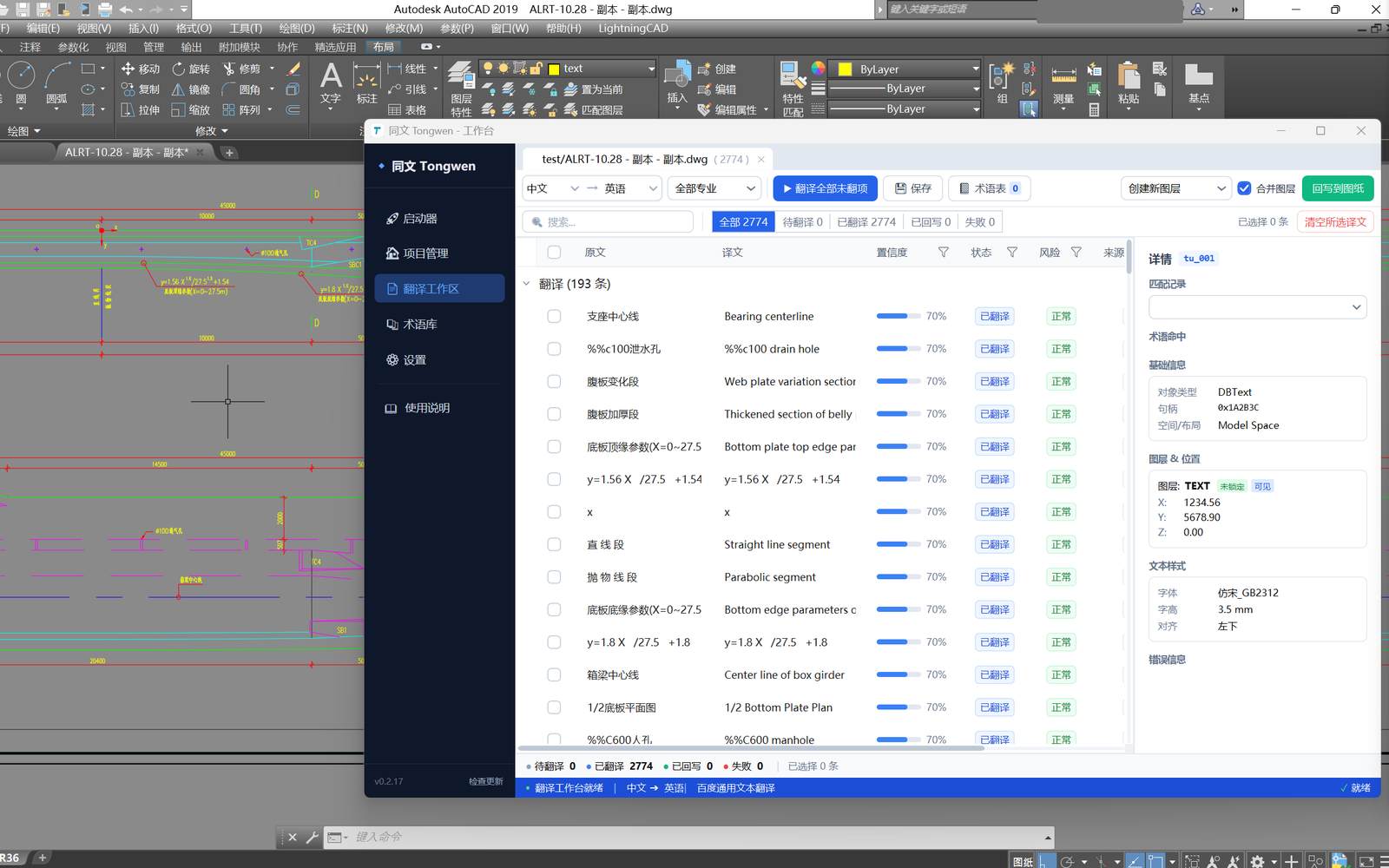
Full drawing or window extraction
Bring DWG text objects into a structured review workspace.
Terminology-aware translation
Select a CSV snapshot and reuse identical inputs within one translation request.
Release-specific CAD safeguards
Review each release's supported objects and write-back scope before installing.
Local work state
Keep drawing context, extraction scope, and review decisions on the workstation.
Drawing translation is more than replacing words
The difficult part is preserving object identity, technical meaning, layout context, and a safe path back into CAD. Tongwen keeps those concerns visible instead of hiding them behind a generic text box.
Context is fragmented
Notes and labels live across layers, layouts and drawing regions.
Terminology can drift
A single technical term translated differently can create procurement and construction ambiguity.
Longer text changes layout
Translated content may wrap, overlap, or exceed the space available in the original drawing.
Direct replacement is risky
Uncontrolled write-back can damage source objects and leave failures difficult to recover.
From drawing objects to controlled delivery
Translation stays inside the AutoCAD workspace. Studio provides the launcher and provider settings.
- 01
Extract a scope
Open the workspace from a saved DWG using a selected region or the full drawing.
- 02
Generate candidates
Select CSV terminology for this window and request drafts from the configured provider.
- 03
Review the result
Choose or edit candidates, inspect QA and locate source objects before adoption.
- 04
Preview and confirm
Review native layout, explicitly adopt it, write to a separate layer, then save the DWG in AutoCAD.
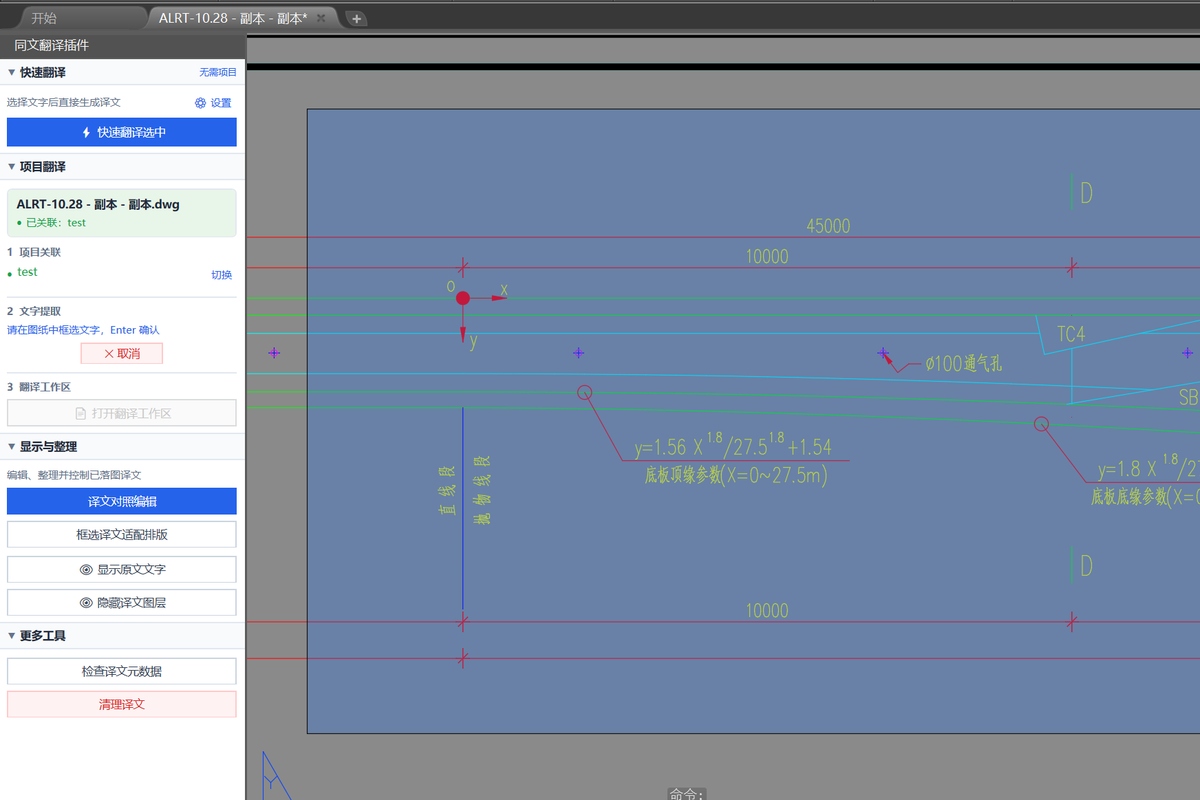
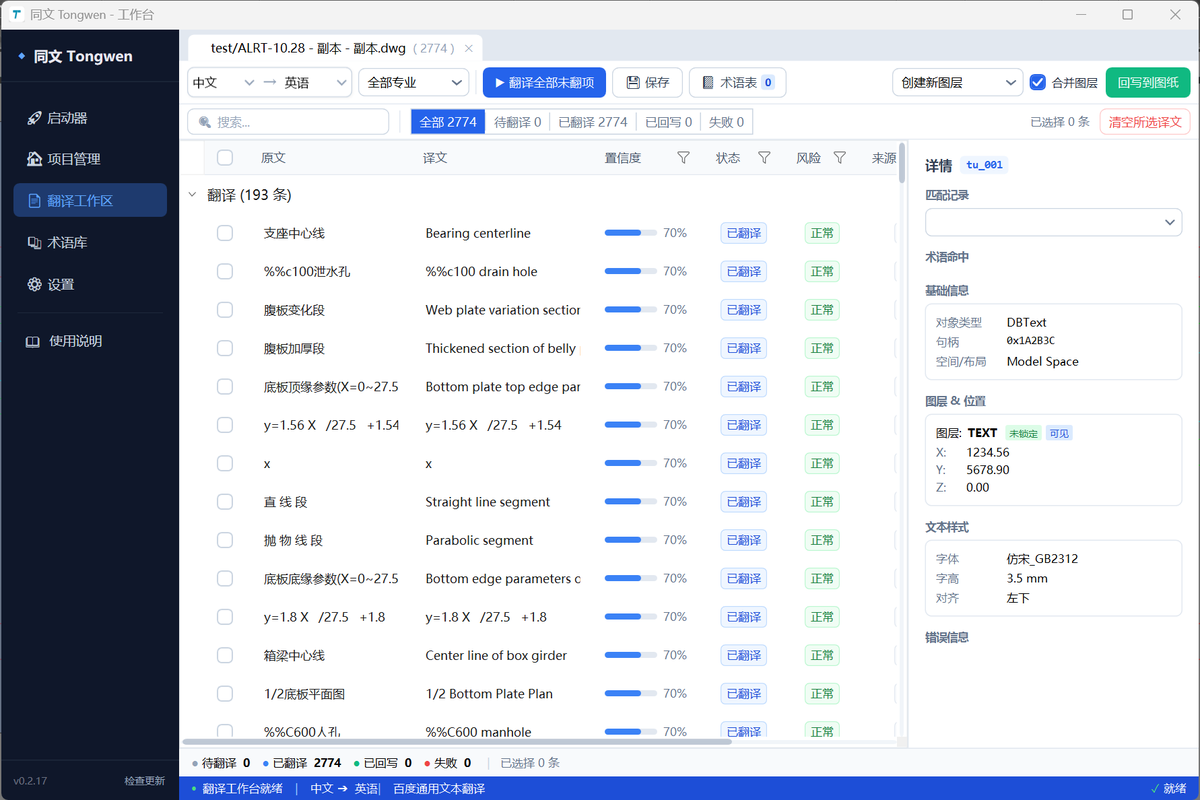
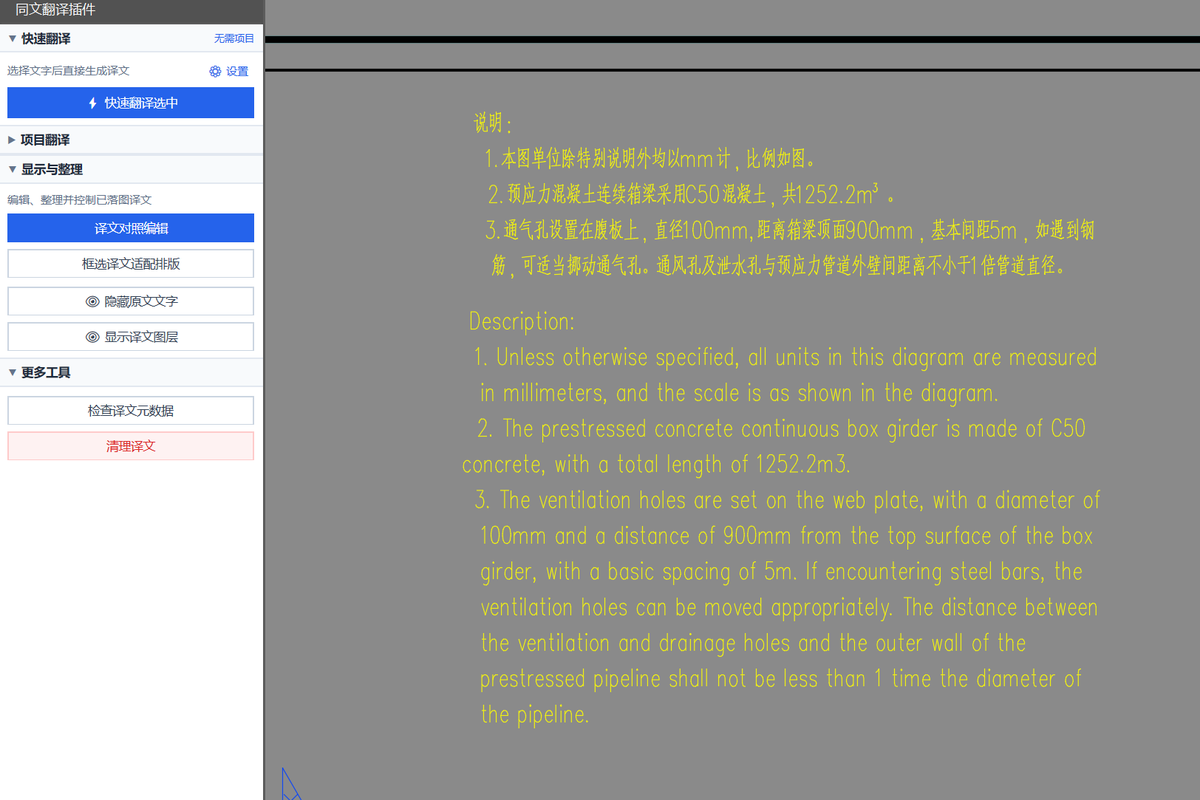
A translation workspace designed around the drawing
The current release covers DBText/MText, CSV terminology, human review, native layout preview and JSON/CSV reports.
Start from the current DWG
Open a selected scope or the whole drawing. Source changes block stale preview and write-back; explicitly re-extract to create a new workspace when the text changes.
- Saved-drawing checks
- Full drawing or selected region
- Source changes block stale actions
Keep repeated technical text consistent
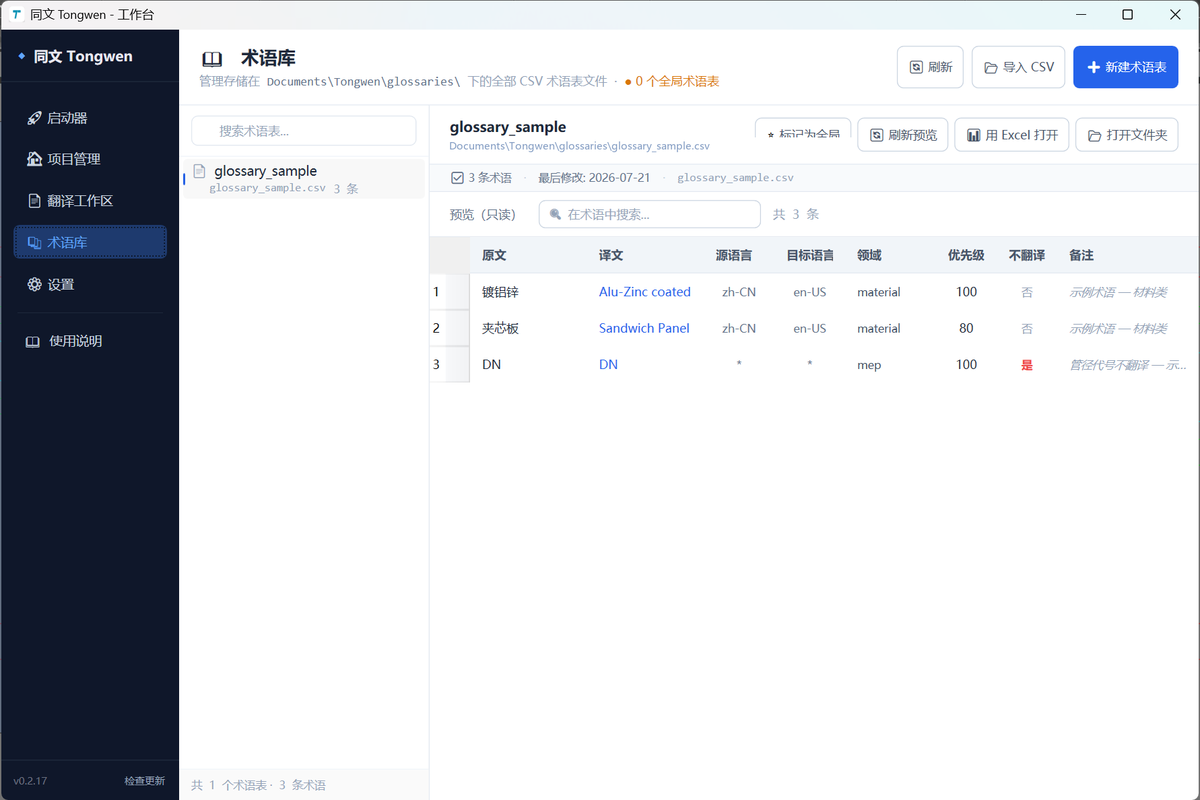
Import UTF-8 CSV files and select immutable copies for the current window. Whole-text matches use the glossary; identical source, context and protected tokens share one provider result within a request.
- Explicit snapshot selection
- Do-not-translate entries
- Per-item provenance and QA
Connect every draft to its object
Select or edit candidates, approve or protect items and locate their source objects. Each candidate keeps its own language and current QA findings.
- Explicit scope and candidate selection
- Manual editing and review
- Entity location and current QA
Confirm the visible result before writing
AutoCAD measures native layout and shows a preview before explicit adoption. Tongwen 2 Preview creates DBText/MText clones on a separate layer. Retry a pending receipt without creating another clone.
- Native preview and explicit adoption
- Separate translation layer
- JSON/CSV review and write-back reports
Protect the drawing before optimizing the translation
Model output is never treated as an arbitrary CAD command. Translation content passes through format protection, validation, strategy selection, and host transactions before it reaches the drawing.
Source-object protection
Separate-layer write-back leaves the source DBText/MText unchanged.
Engineering context retained
Keep handle, layer, coordinates, style, alignment, and protected placeholders traceable.
Local work state
Workspace facts, candidates and review history remain on the workstation.
Actionable failure reporting
CAD execution and receipt registration are shown separately. Reports do not prove that the DWG has been saved.
Designed for engineering delivery workflows
Use Tongwen where drawing structure and technical language matter as much as the translated sentence itself.
Multinational project delivery
Prepare target-language drawing sets while keeping source geometry and object context traceable.
Shop drawing localization
Process repeated notes and labels with reusable project terminology within the selected release's object scope.
Design and translation review
Let language reviewers work in a table while CAD engineers retain object-level drawing context.
Choose Tongwen 2 Preview or Tongwen Classic
Both installers provide AutoCAD 2019–2026 plug-ins. Their workspaces and data formats are separate.
- Windows x64
- A licensed AutoCAD 2019–2026 host
- x64 .NET 8 Desktop Runtime for Tongwen 2 Preview
- Configured credentials for online translation
All three SDK-generation projects compile successfully. Recorded AutoCAD 2026 no-UI evidence is from 2.0.1; 2.0.2 updates Preview branding. GUI, real provider, install/upgrade and other-year host checks remain unverified. Studio provides the launcher and provider settings.
Frequently asked questions
Practical details about drawing safety, supported content, connectivity, and terminology.
Install Tongwen and configure a translation provider in Studio. Open a saved DWG in AutoCAD, select the text scope, generate and review drafts, then preview and confirm a separate translation layer. Save the drawing in AutoCAD; no DXF conversion is required.
Tongwen 2 will remain Preview while real-world feedback accumulates. Start with a copy of your drawing and review the release notes. A numeric version or GitHub Latest label does not mean all workflows have been validated.
It creates DBText/MText clones on a separate translation layer and preserves source objects. Back up the drawing before processing and save it in AutoCAD after write-back.
DBText and MText. AttributeReference, Dimension, replacement, bilingual append and a full Studio editor are deferred.
Tongwen 2 Preview provides AutoCAD 2019–2026 plug-ins and requires the x64 .NET 8 Desktop Runtime. Enter translation from AutoCAD; Studio provides the launcher and provider settings.
Yes. Import UTF-8 CSV terminology and explicitly select it for the current window. Fuzzy translation memory and automatic learning are deferred. Online translation sends required text to the configured provider.
The DWG and workspace stay on the workstation. Online translation requires access to the configured provider and sends the required text and context to that provider. Local storage does not mean that online translation is fully offline.
Review the native preview. When no safe candidate exists, revise the translation or handle the item manually. Inspect the saved drawing before delivery.
Legacy 0.2.27 remains available. Tongwen 2 Preview replaces an installed Tongwen version and does not migrate old workspaces. To return to legacy, uninstall Tongwen 2 Preview first; downgrade installation is blocked.
Try Tongwen 2 or continue with Classic
Explore the new workflow with Preview on a copy of your drawing. The original Classic installer remains available for existing work.
Tongwen 2 Preview
Try the new translation, review and preview workflow on a copy of your drawing.
AutoCAD 2019–2026 · DBText/MText · separate translation layer.- Windows x64
- AutoCAD 2019–2026
- x64 .NET 8 Desktop Runtime
Tongwen Classic
The original 1.x installer, retained for continuing your existing workflow.
AutoCAD 2019–2026 · scope documented in the legacy release.- Windows x64
- AutoCAD 2019–2026
- See the legacy release notes